With Black Friday close, changing your theme is tempting and risky. A third-party summary of Shopify’s Winter ’26 edition says merchants can “schedule and test different themes in real-time” from the admin. That is useful. But the same summary gives no setup steps, plan requirements, or detail on how results are measured, and it is not Shopify’s own documentation.
So before you rely on any theme-testing feature, decide how you will judge the result. A test without a plan will always seem to show something.
What we do not know yet
From the coverage I could read, these are open questions. Check Shopify’s official release notes and your own admin before trusting any answer from me or anyone else:
- Is the feature available on your plan and in your region?
- How is traffic split between the two themes, and is it random per visitor?
- Which results does the admin show: orders, conversion, revenue per visitor?
- Can you stop a test early, and what happens to visitors mid-session?
The same article also mentions SimGym, an AI tool that simulates user behaviour before launch to catch friction points. Treat simulated visitors as a way to spot problems, not as a replacement for real orders.
Write the plan before you start
Take ten minutes and fill in this sheet. Put it somewhere you cannot quietly edit later.
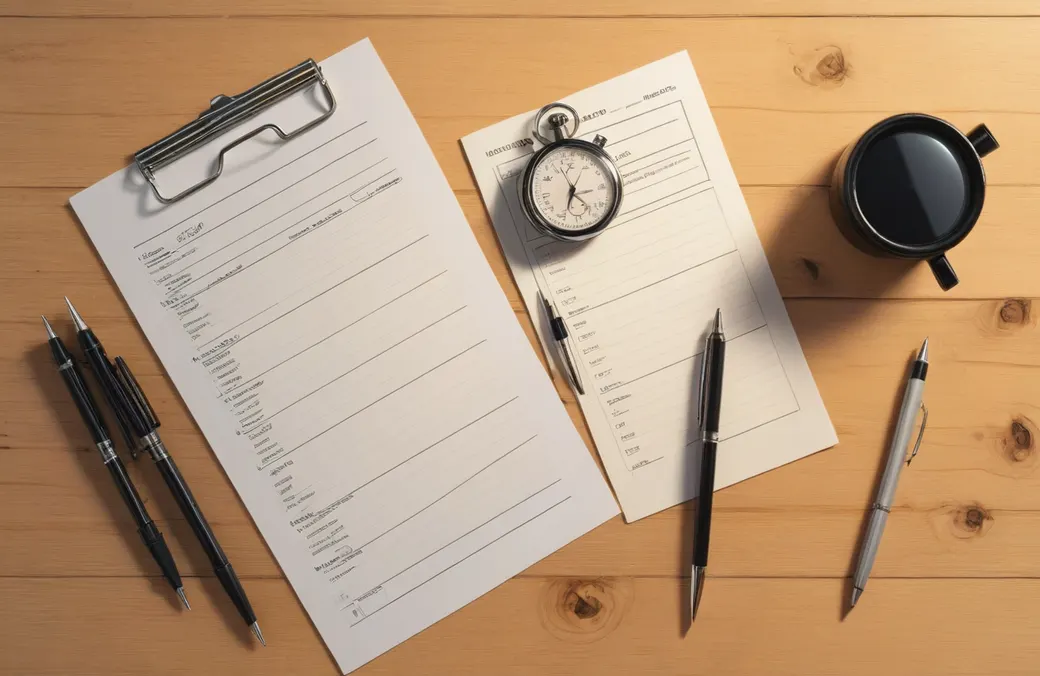
- One change. Test one thing: a new product page layout, a different header, a changed shipping banner. If the new theme changes ten things, you will not know which one mattered.
- One main metric. Pick it now. For most shops that is orders per visitor (conversion rate) or revenue per visitor. Add one guard metric, such as refund requests or support messages, to catch a change that sells more by confusing people.
- A stop date. Choose an end that covers at least one full week, so weekday and weekend behaviour are both included. Do not stop the moment one side looks ahead.
- A minimum size. If you only get a handful of orders in the period, you cannot learn much. Write down roughly how many orders you expect per side. If it is very few, test something bigger or skip testing and use your judgement.
- A decision rule. For example: “Switch only if the new theme’s main metric is higher and the guard metric is not worse.” Decide what you do if the answer is unclear. The honest default is to keep the current theme.
Before you trust a result
When the stop date arrives, check these in the admin:
- Both themes ran over the same dates.
- Nothing else changed: no big discount launch, ad burst or email send hit one side only. If a promotion started mid-test, note it.
- The numbers you read are the ones you named in the plan, not another metric that happened to look better.
- Place a test order on each theme, on a phone, and make sure checkout, discount codes and shipping rates behave the same.
If the admin does not show the metrics you need, fall back to your own analytics for the same date range, and say in your notes which source you used.
The safe version for right now
If you are close to Black Friday and cannot get a clean test, do not swap your live theme on a hunch. Work on a draft copy, preview it on a phone, and schedule any switch for a quiet day rather than the peak. Keep the old theme so you can go back quickly.
A note on honesty
A small shop’s numbers are noisy. A test that says “up 8%” on 40 orders is not a result. If your plan says the data is too thin, accept that and decide on other grounds: customer feedback, page speed on a phone, or a simple readable layout.

Sources
- ecommerce-platforms.com: Shopify Editions Winter 2026 (third-party summary; check Shopify’s own release notes for availability and details)