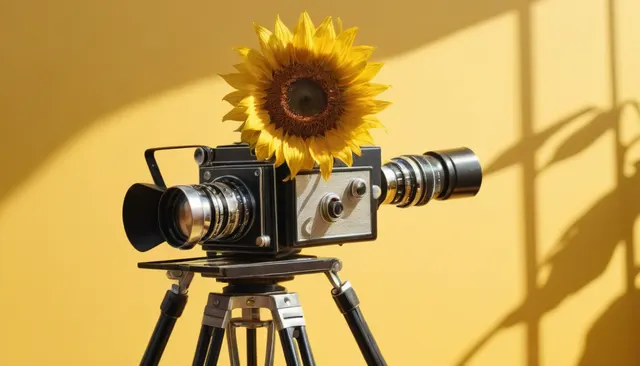
Every cover on this blog is generated. Not picked from a stock library, not drawn by hand — generated on the same platform your shop would run on, from a prompt, on our own GPU server. This post shows exactly how, step by step, with the real prompts and the real times. Nothing below was retouched, and where a step took several tries, we say so.
We'll follow one product the way a small shop would: a single ordinary phone photo goes in, and a product shot, a second angle, a looping clip for social and a blog cover come out.
1. Start with the photo you already have
Most shops have a photo like this: taken on a phone, on the kitchen counter, under the ceiling light. It shows the product, but it doesn't sell it.
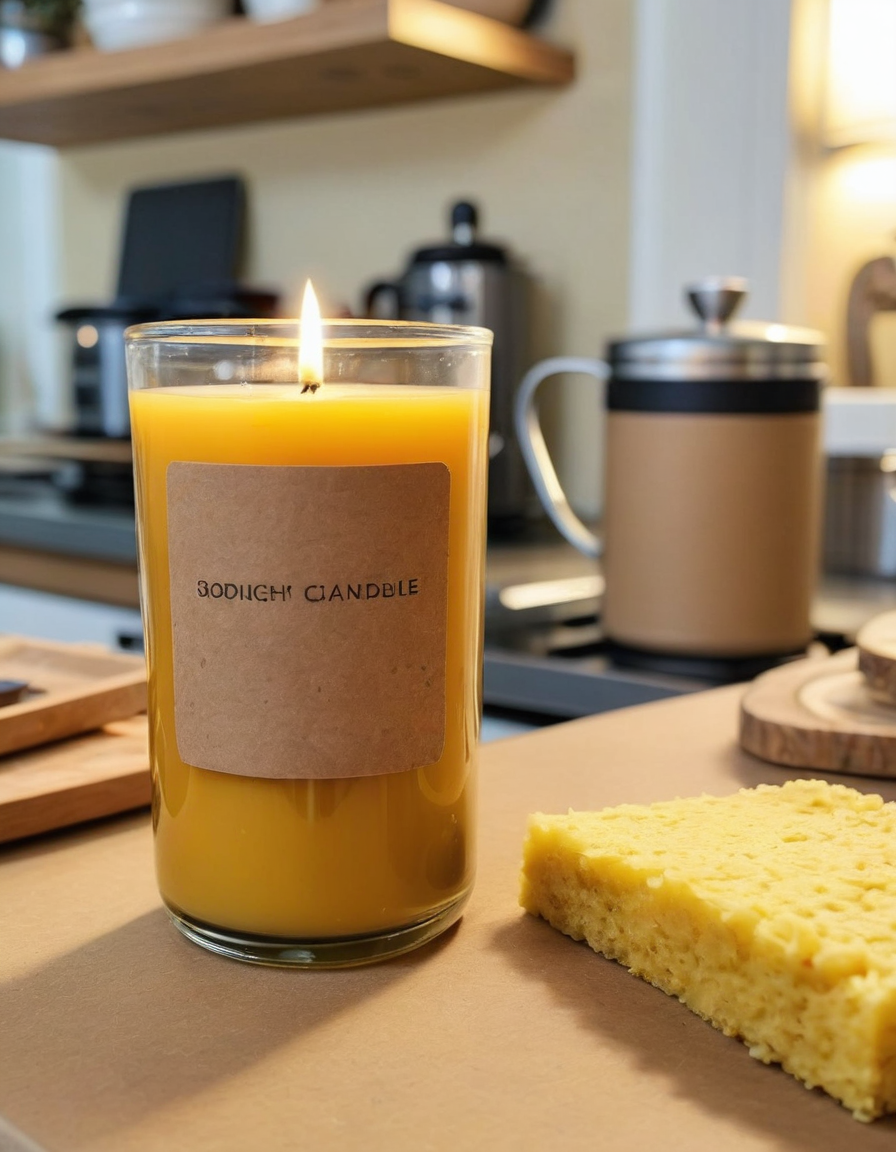
Preset: Image from a prompt · 4:5 · medium · 31 s
Close-up unedited smartphone photo of a lit handmade soy candle in an amber glass jar with a blank kraft paper label, on a kitchen counter, a yellow sponge and a coffee mug slightly out of focus behind it, flat overhead kitchen light, ordinary everyday snapshot
Negative: second candle, two jars, text, letters, writing, juice, drink, cinematic lighting, dramatic light, professional photography, moody
2. Turn it into a product shot
The Improve / edit a photo preset takes that image plus a plain-language instruction. The model keeps the product itself — jar, label, wax — and changes everything around it. Portrait 4:5 is the tallest format Instagram's feed allows, and it works on a product page too.
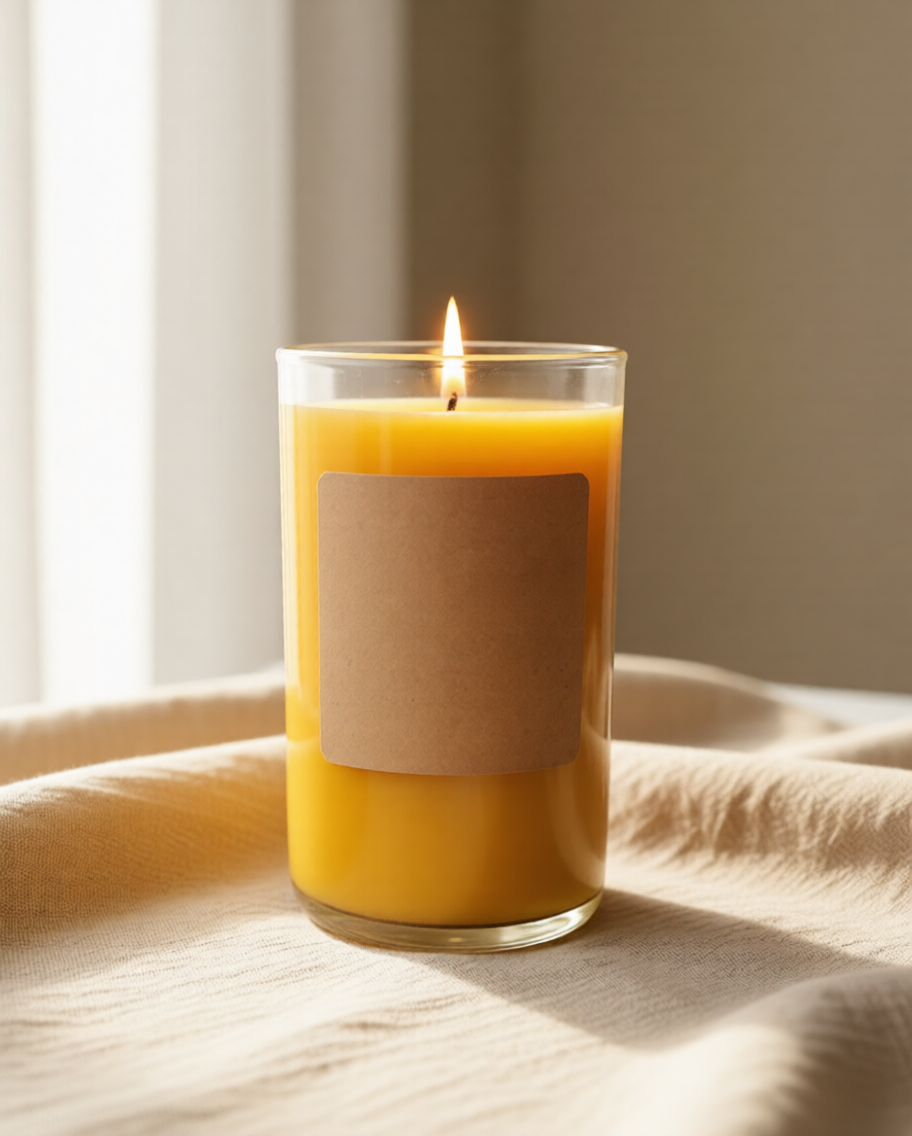
Preset: Improve / edit a photo · 4:5 · medium
Remove the sponge, the dish towel, the mug and all clutter. Place the same lit candle on a warm beige linen cloth with soft window light from the left and a softly blurred neutral background. Keep the jar, the blank kraft label, the wax and the flame exactly as they are. Clean premium product photography.
3. Get a second angle without a second shoot
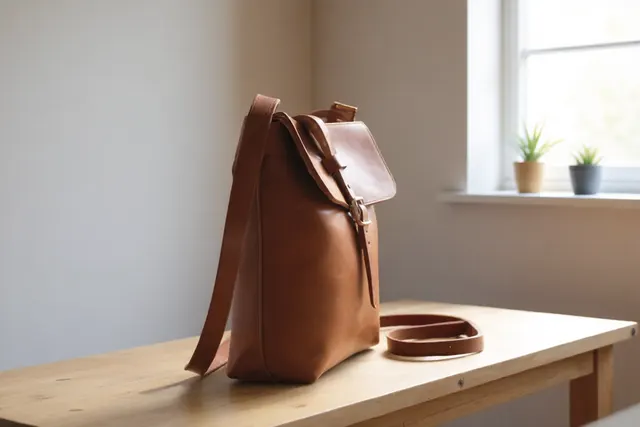
Product pages often show more than one view. The Camera move preset turns the virtual camera around the same object — no reshoot, no new setup. The instruction is a fixed phrase the model was trained on, not free text.
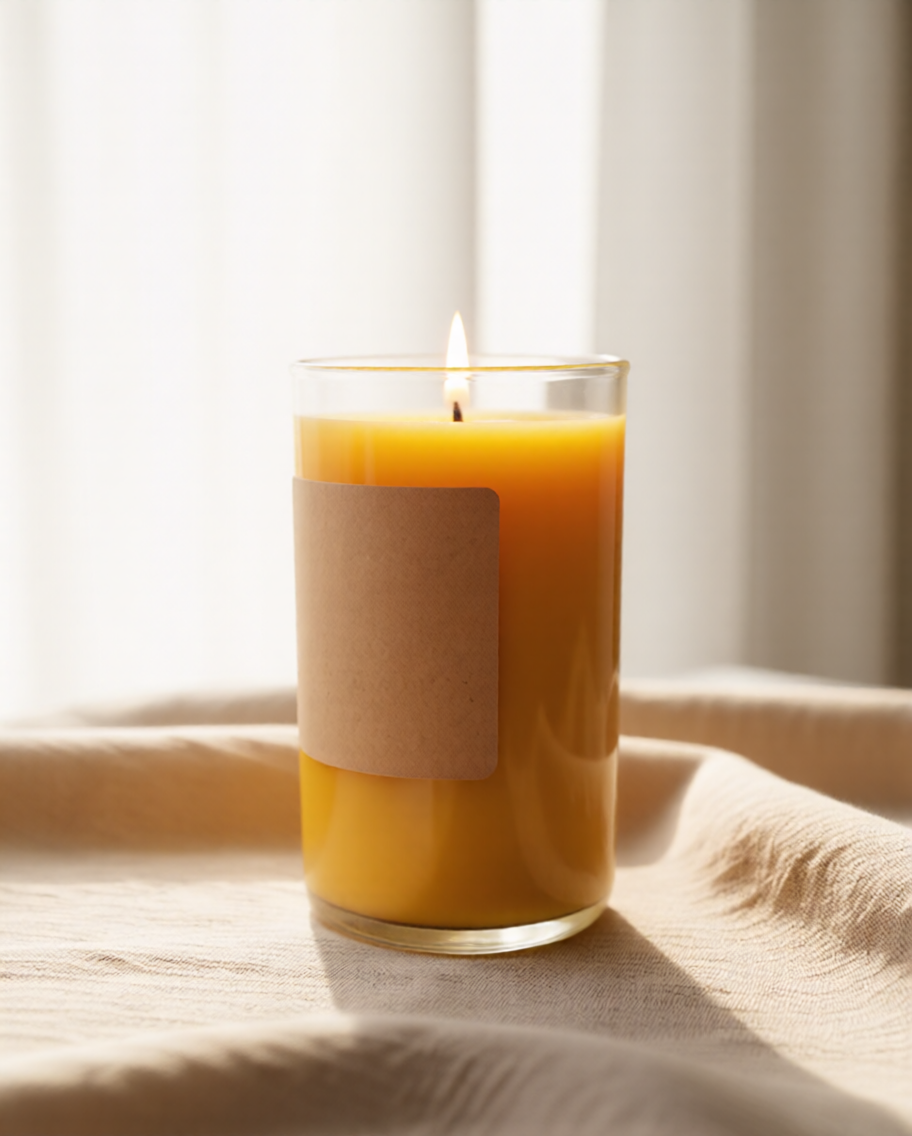
Preset: Camera move · rotate 45° right
Rotate the camera 45 degrees to the right.
4. Make it move
A still photo becomes a short clip with the Video from frames preset. Give it one frame and the clip ends where it began, so it loops without a jump — ideal for a Reel, a Story or the top of a product page. Length is set in frames at 16 frames per second.
Preset: Video from frames · 4:5 · medium · 49 frames
Still life: the candle is already burning calmly on the linen and its small flame flickers softly in a gentle draft, warm window light shimmers slightly on the cloth. Nothing else moves and nothing enters the frame. Locked-off static camera.
5. And the cover of this post
Blog covers use the same image preset in landscape 16:9. When an editor on our team asks for a cover, the article's topic becomes the prompt. This one was the hardest image in the post: we tried seven versions, and none drew exactly what we described. The fast image model handles one subject and a mood well; a scene with several objects doing specific things — a phone on a tripod, pointing at the candle, a laptop showing a grid — gets the parts right and the relationships wrong. Tripods became candle stands, one candle became three, a phone screen showed a stranger's face.
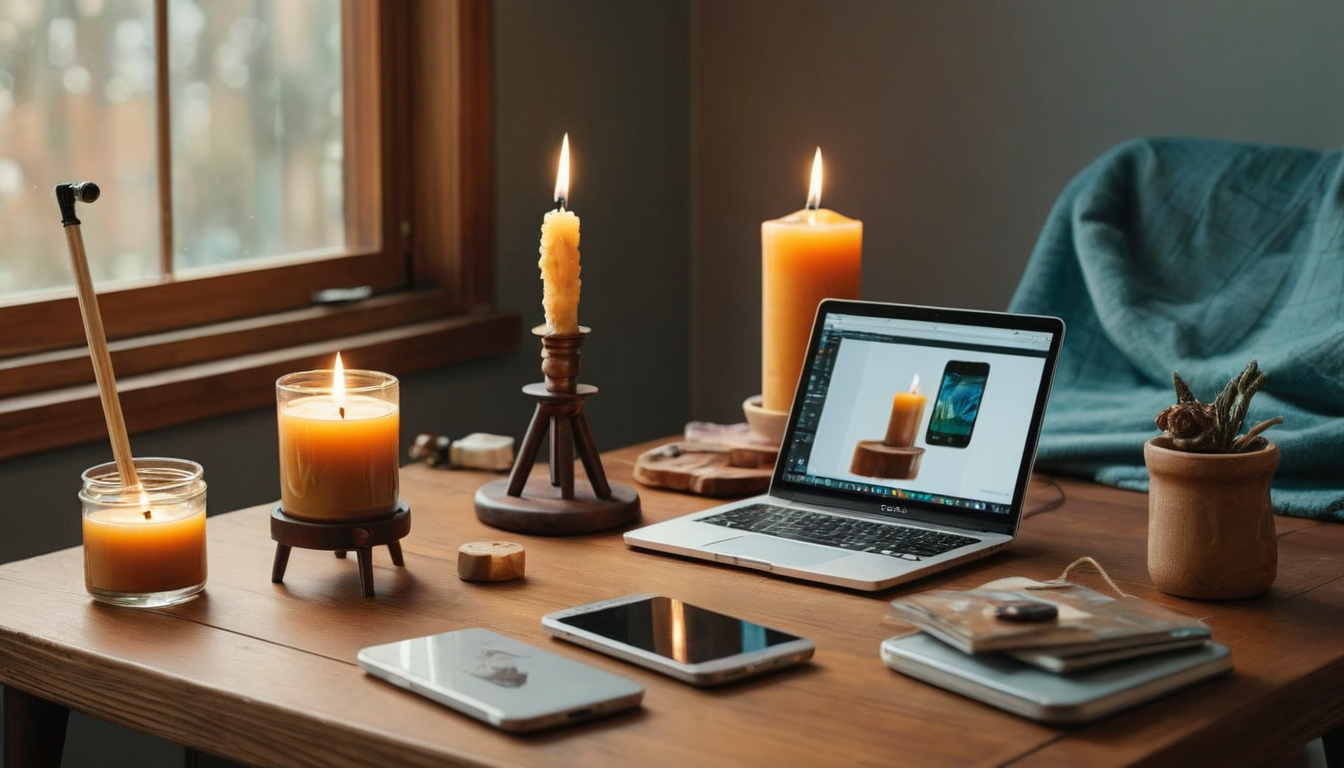
Preset: Image from a prompt · 16:9 · medium
Warm editorial photo of a small home product studio on a wooden table: a smartphone on a mini tripod photographing a handmade candle in an amber jar, a laptop behind it showing a grid of product photos, soft window light, calm and tidy, muted amber and teal tones, no text, no logos
What happens behind the button
Asking for a cover doesn't call the image model directly. It sends an event, and a small flow decides what to do with it:
- The post says "I need a cover".
- A flow turns that into a generation job with the right preset, format and size for this site.
- The job runs on our GPU server. Jobs wait in a queue, so a busy afternoon slows things down but nothing is lost.
- When the job finishes, a second flow attaches the image to the post. If it fails, the reason is recorded next to the post instead of disappearing.
Those flows are editable per shop. Want every cover square, an Instagram version made alongside it, or a clip only for featured products? That's a change to the flow, not a code change. The files go straight into the shop's own storage and are served from its own domain — every image on this page loads from async.shop/media.
The honest limits
- It isn't instant. The times above are the GPU time of each job, as recorded by the generation server itself. Waiting in the queue comes on top — on a busy day a job can wait several times longer than it runs. A clip takes minutes, not seconds.
- Check the details. Generative edits can change small things — text on a label, the shape of a handle. For a product listing, compare the result with the real item before you publish.
- Models add things you didn't ask for. Our first prompt for the clip asked for the flame to flicker and a wisp of smoke to rise. The model read that as a candle being lit — so a lighter swings into the frame (below). A second try with a negative prompt listing hands, lighter, match brought a hand with a match instead: this fast video model runs without classifier-free guidance, and at that setting a negative prompt does nothing at all. What worked was changing the positive prompt — no smoke, "already burning", "nothing enters the frame". The rejected clips stay in the queue's history like any other job.
- Your photo matters. Better light and a sharper source still give better results. The edit preset improves a photo; it doesn't invent a product you don't have.
If you sell physical products and want this running for your catalogue — covers, product shots and clips generated in your shop's own admin — tell us what you sell and we'll show you on your own photos.